I recently took my family to visit Crater Lake in Oregon, and discovered there was no cell phone coverage near the lake area. We took turns jumping off a 20-foot cliff into the lake, and I wanted to send the video and pictures to my kid’s phones.
Here’s how to send photos and videos to another iPhone – even when there’s no cell phone coverage or wifi – using AirDrop.
Note: If you're trying to transfer everything (all of your photos, videos, apps, contacts) from phone to phone then you'll need more than AirDrop and I cover that here: How to move everything from your old phone to your new one.
1. Turn on AirDrop by swiping up from the bottom of your iPhone, tapping AirDrop and selecting “Everyone” or “Contacts Only”.
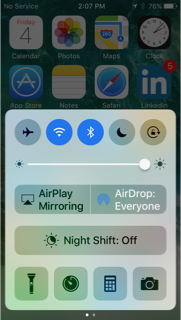
Very important: You need to also do this for the phone(s) you’re sending to.
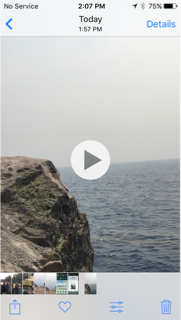
2. Select the photo or video that you want to send from your Photo Album, and then tap the Share icon at the lower left of the screen (looks like a square with an arrow pointing upwards).
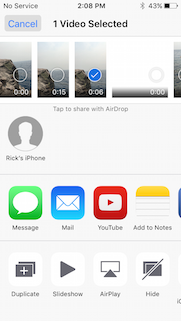
3. Tap the AirDrop user as the destination (Rick’s iPhone in the screen shot below).
4. Accept the sent photo or video on the other iphone.
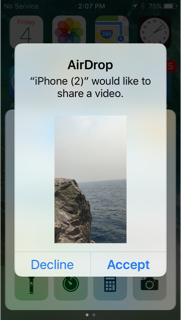
That’s all there is to it. The transferred files will show up in the Photo Album of the other iPhone. This is also a very fast and convenient way to transfer multiple files in one shot – much faster than emailing them as attachments.
And as I said earlier, if you're trying to transfer everything (all of your photos, videos, apps, contacts) from phone to phone then you'll need more than AirDrop and I cover that here: How to move everything from your old phone to your new one.