You bought a new iPhone or Android and now you need everything from your old phone copied over — contacts, photos, text messages, your apps.
Same platform: iPhone to iPhone, or Android to Android
If your old phone and your new phone are both iPhones, or both Android phones, you're in the easy lane. Apple and Google both built a transfer tool into the setup process, both are free, and both move almost everything — contacts, photos, messages, call history, app layout, and most app data.
On iPhone it's called Quick Start. Turn the new phone on near the old one and follow the prompts. On Android it's part of the initial setup wizard — plug the two phones together with a cable when it asks, and pick what you want to bring over.
The built-in tool handles it at no cost. Most readers are in this situation and should spend nothing on the move. If that's you, skip to the backup section and the checklist at the end.
Crossing platforms: iPhone to Android, or Android to iPhone
Contacts and photos move without much trouble, but text message history, WhatsApp history, call logs, and the data inside your apps are where the free paths fall down.
Apple makes a free app called Move to iOS that goes from Android to iPhone, and it only runs during the initial setup of the new iPhone. If your new iPhone is already set up and in use, you have to erase it and start over to use Move to iOS. Going the other way — iPhone to Android — there isn't a single official app that covers it all.
Back up the old phone first
Before you transfer anything, back up the old phone. iCloud for iPhone, Google One for Android, or a cable to a computer. The transfer is not the backup. If something gets missed during the move and you've already traded the old phone in, there's no way back.
For photos specifically, if you've never gotten a clean copy off the phone before, now is the time. I've written about this a few different ways depending on what you have on hand:
- Sending photos and videos off an iPhone
- Transferring iPhone photos to a Windows PC
- Moving photos from a Mac to a Samsung phone
- Getting songs, photos and contacts off an iPhone
Copy files and apps
These are the various files and apps you'll need to include:
- Contacts. If they were synced to your iCloud or Google account, signing in on the new phone brings them down.
- Calendar. It follows the account.
- Photos and videos. Either through the built-in transfer, through iCloud or Google Photos, or by cable to a computer first.
- Your apps. The apps themselves reinstall from the App Store or Play Store.
Note that the apps are not the same as the data inside them. The app reinstalls, but most apps make you sign in again, and some lose local history entirely. A game that saved your progress to the cloud will pick up where you left off. A game that saved only to the phone starts over since the data wasn't saved locally.
These are the things that don't come across on a cross-platform move, and sometimes don't come across even on a same-platform move:
- SMS and iMessage history going between iPhone and Android.
- WhatsApp chat history going between iPhone and Android.
- Call logs.
- Data stored only inside an app that doesn't sync to a cloud account.
When a paid tool is worth it
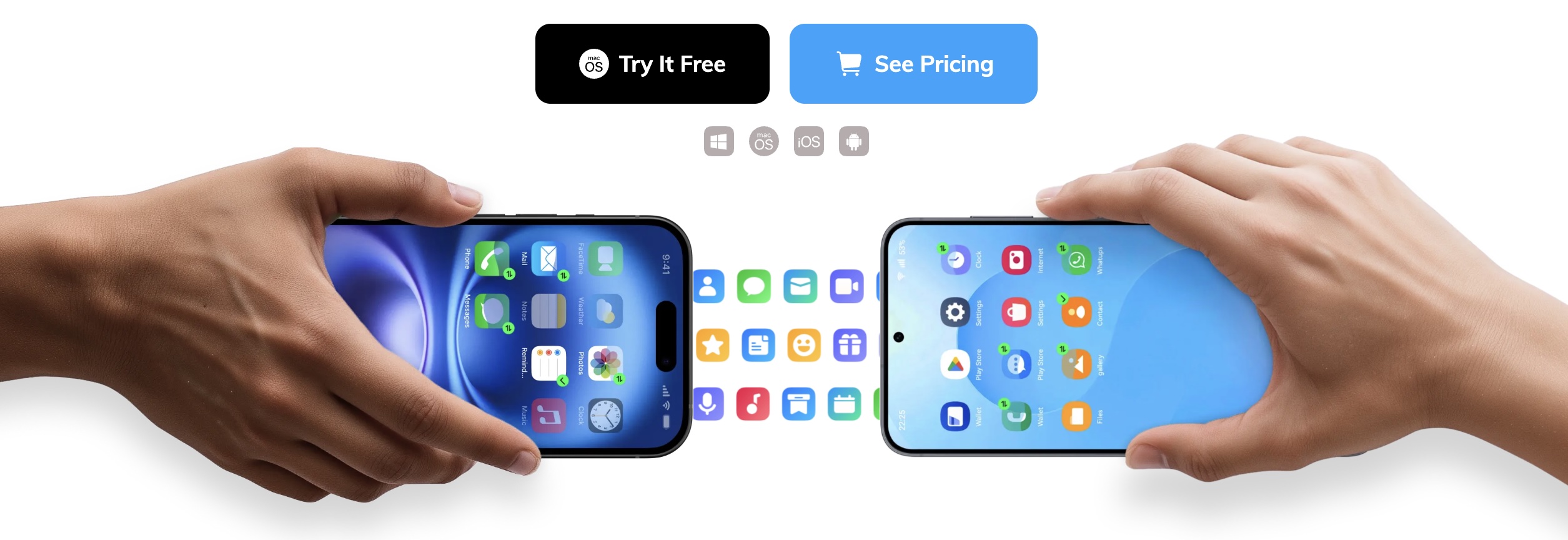
If you're switching between iPhone and Android and you care about keeping your text message history or your WhatsApp history, this is where a paid tool earns its money. Wondershare MobileTrans handles the cross-platform case in one pass over a cable, including messages and WhatsApp.
Two-factor authentication apps
If you use an authenticator app — Google Authenticator, Microsoft Authenticator, Authy, or a bank's own app — the six-digit codes it generates are tied to the phone, not to your account. If you install the app on the new phone then the codes won't match. If you've already wiped the old phone, you're locked out of every account that uses it, and getting back in means going through each service's account recovery one at a time.
Handle this before you wipe the old phone. Google Authenticator and Microsoft Authenticator both have a transfer or cloud-sync option in the app's settings; enable it, then sign in on the new phone to pull the codes down. Authenticateor syncs across devices if you enable that in its settings. For anything else, open each account on a computer, go to its two-factor settings, and re-enroll the authenticator on the new phone. You'll usually scan a new QR code, which replaces the old one.
Check these before you wipe or trade in the old phone
- Photos are on the new phone, not just showing as cloud placeholders. Open a few from a year ago and make sure they fully load.
- Contact count roughly matches between the two phones.
- Two-factor apps are moved or re-enrolled, and you've tested logging in to at least one account.
- The old phone is signed out of iCloud or Google, so it isn't locked for the next owner. On iPhone that's Settings, your name, Sign Out. On Android it's Settings, Accounts, remove the Google account.
Order of operations
Back up the old phone, transfer to the new one, work through the checklist above, then wipe the old phone. Whether you do it manually or take the easy route with Wondershare is up to you.
Leave a comment