A friend built her vacation rental site in Google Sites. She wanted the ability to update the web pages by herself, which Google lets her do without needing to know any html.
However, the website address was https://sites.google.com/view/herbusiness/homewhich doesn't look great on a business card.
She also owns a domain name at https://her-domain-name.com and wanted to connect her domain name with the Google site, so that visitors would see https://her-domain-name.com in the browser rather than the google link.
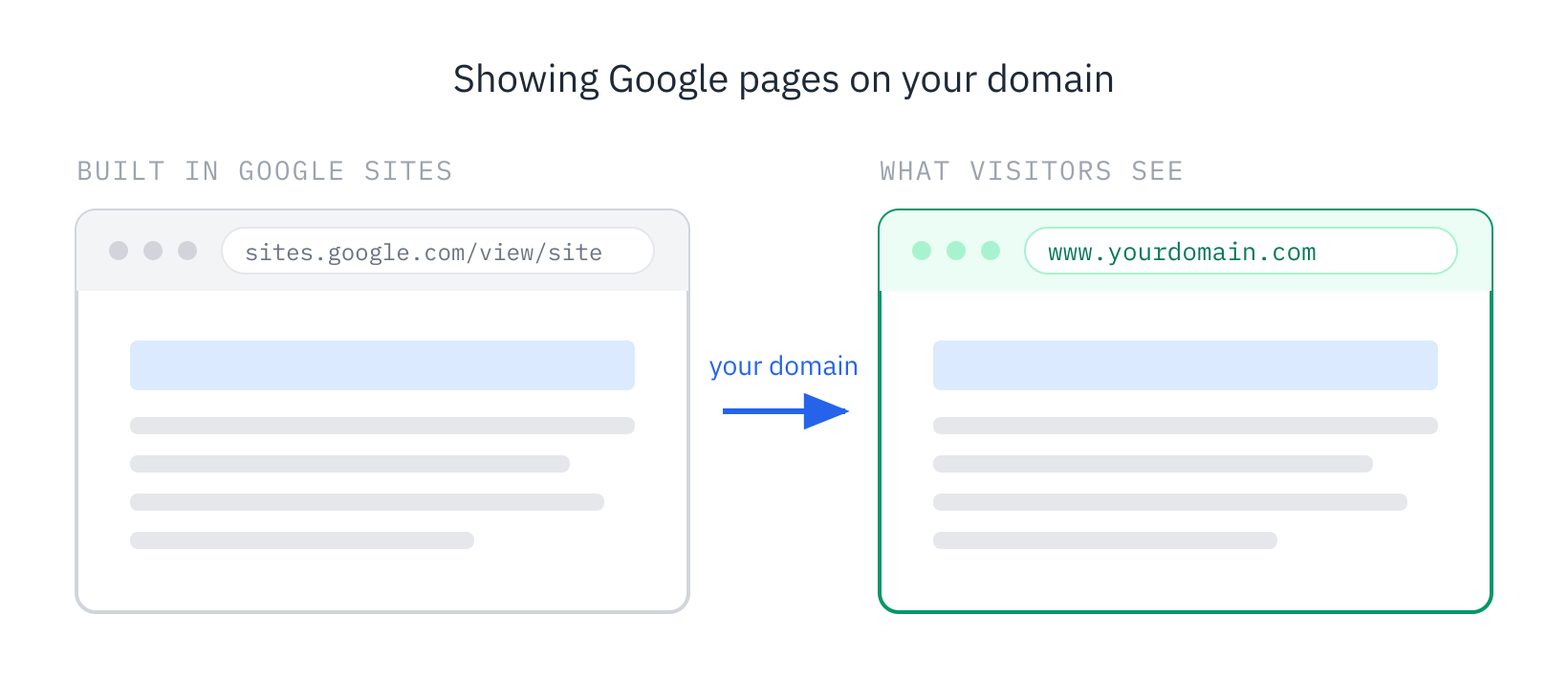
You can use your own domain for a Google Site by following the instructions in this article.
How it works
You'll need to change two settings: one that tells your domain to point at Google, and one that tells Google to answer requests for your domain.
- The first is a DNS record called a CNAME, added wherever your domain is registered. It says that www.yourdomain.com is really Google's server.
- The second is in the Google Sites settings, where you enter the domain you want it to answer for.
Google Sites can only serve a subdomain like www.yourdomain.com. It can't serve the bare domain (also called the apex domain) yourdomain.com with nothing in front of it. So www.yourdomain.com ends up being the address of the site, and the bare domain yourdomain.com gets a redirect pointing at it.
Google automatically issues an SSL certificate for your www address and renews it automatically, so there's nothing to buy or configure there. The bare-domain redirect runs on your registrar's servers instead, so the certificate covering that one has to come from the registrar. Some include it, some charge separately. Without it, https://yourdomain.com won't load.
Steps to follow
1. Verify the domain in Google Search Console. Google won't let you claim a domain you haven't proven you own.
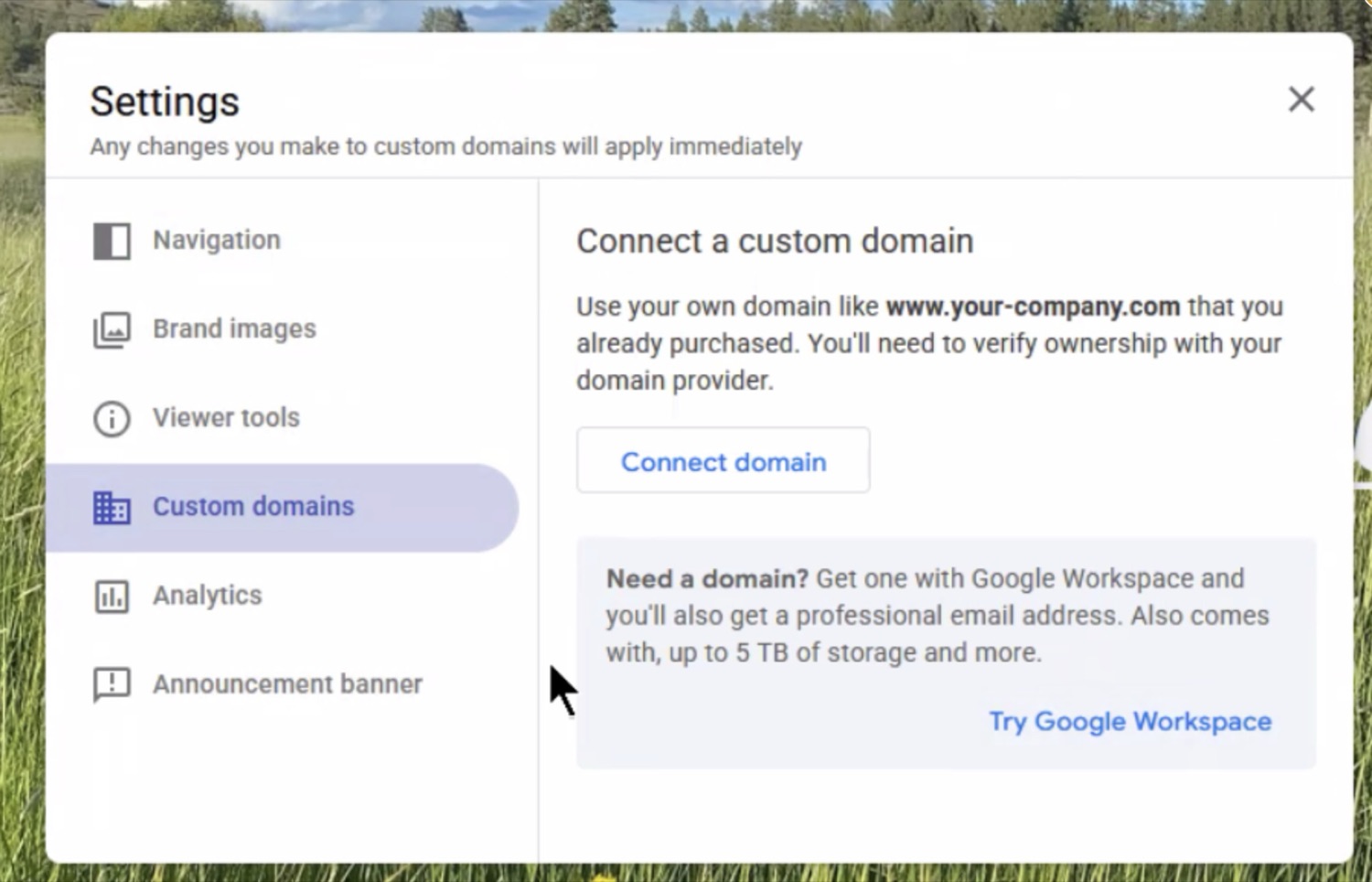
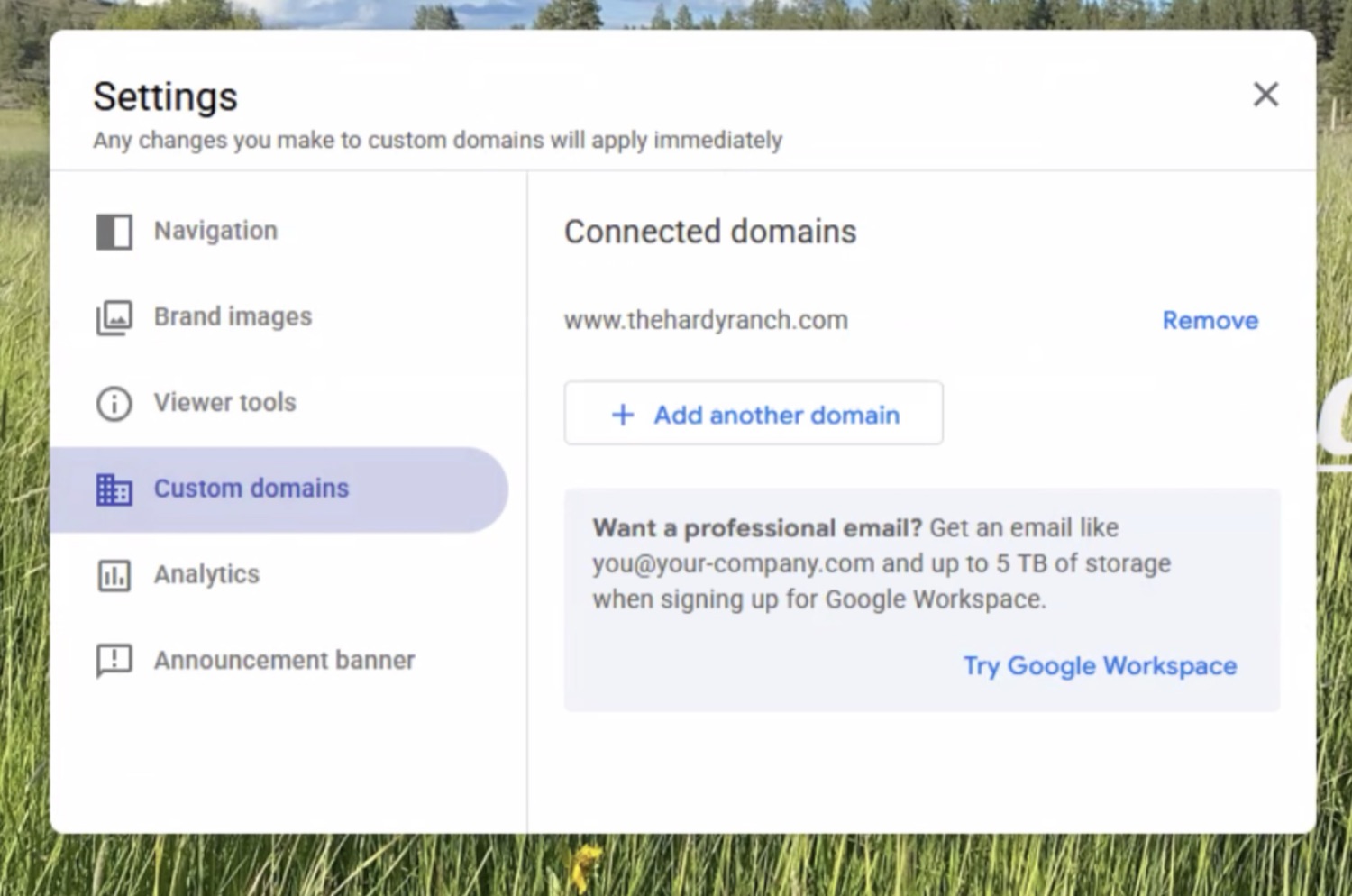
2. Connect the domain in Google Sites. Open the site, then Settings → Custom domains → Connect domain → "Use a domain from third party," and enter your www address.
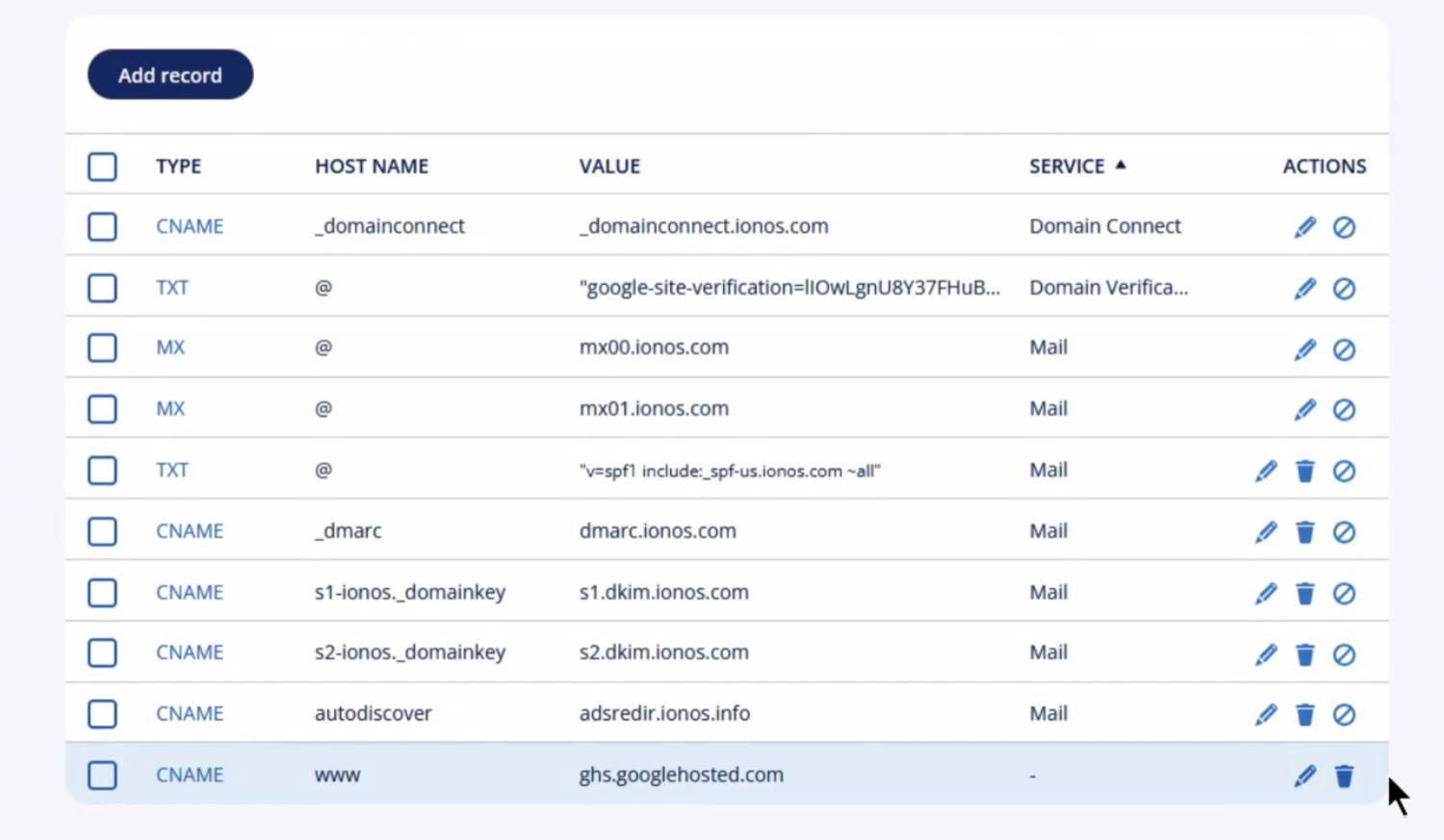
3. Add the CNAME record at your registrar.
| TypeHost namePoints to | ||
| CNAME | www | ghs.googlehosted.com |
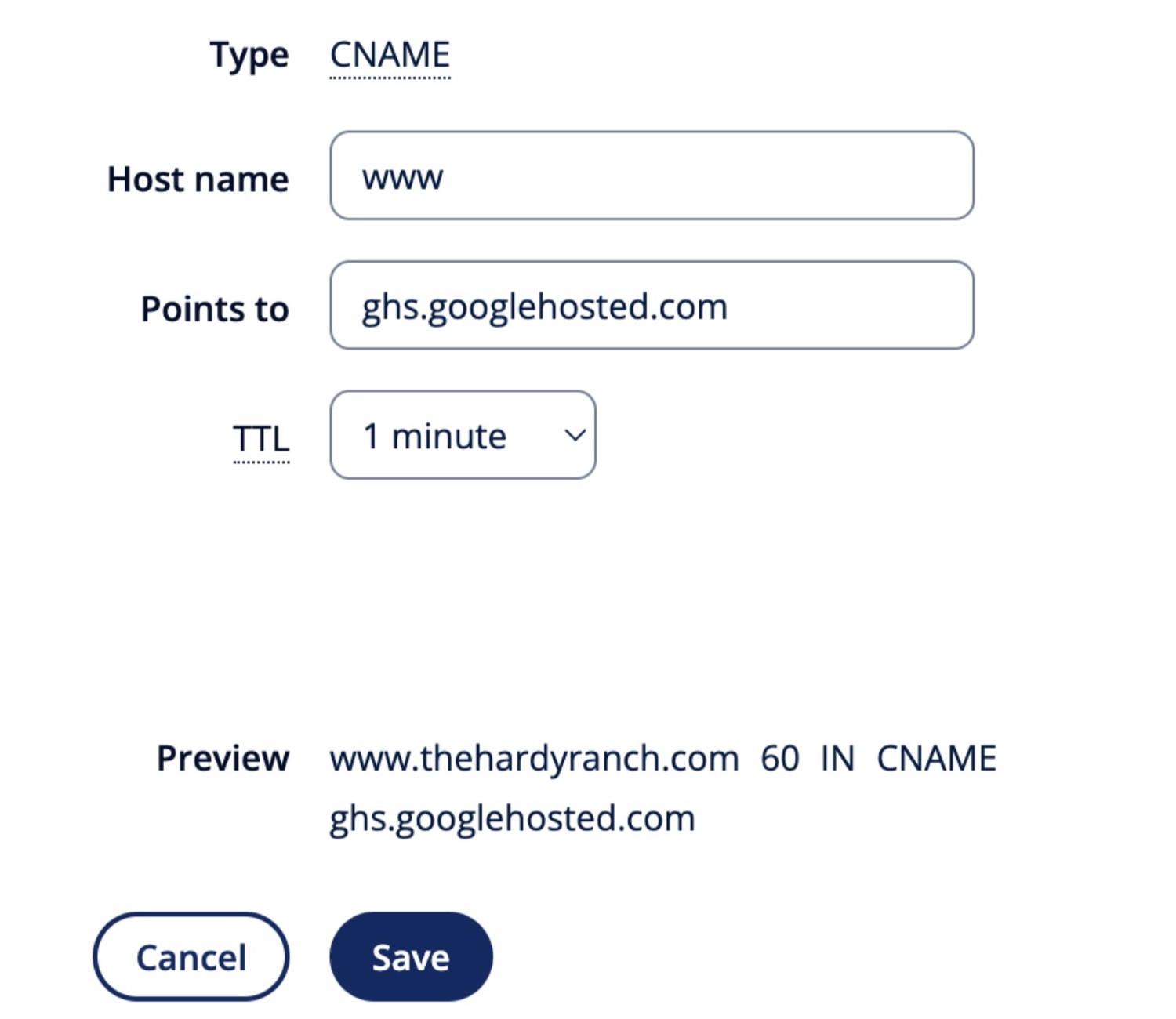
Set the TTL to a minute or two while you're working. TTL controls how long other servers are allowed to cache the answer, so a short one means a mistake clears quickly instead of sticking around for an hour. Put it back up when you're done.
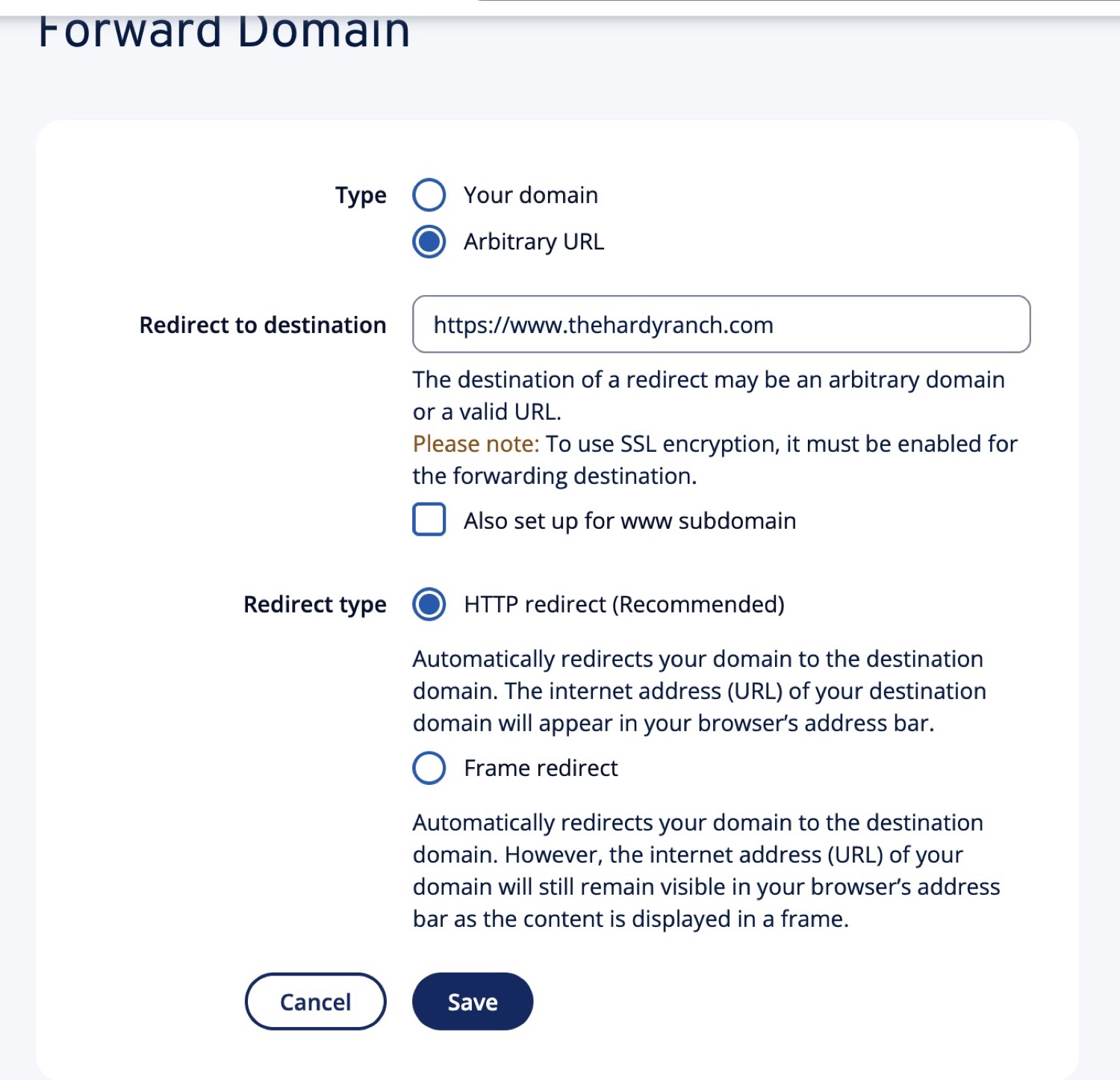
4. Redirect the bare domain. In your registrar's domain forwarding settings, send yourdomain.com to https://www.yourdomain.com. Use the plain HTTP redirect, and switch on SSL for the forwarding so the https:// version works as well.
After that it's waiting. Google can take anywhere from a few minutes to a day to start serving the site, and the certificate arrives after that.
Things to look out for
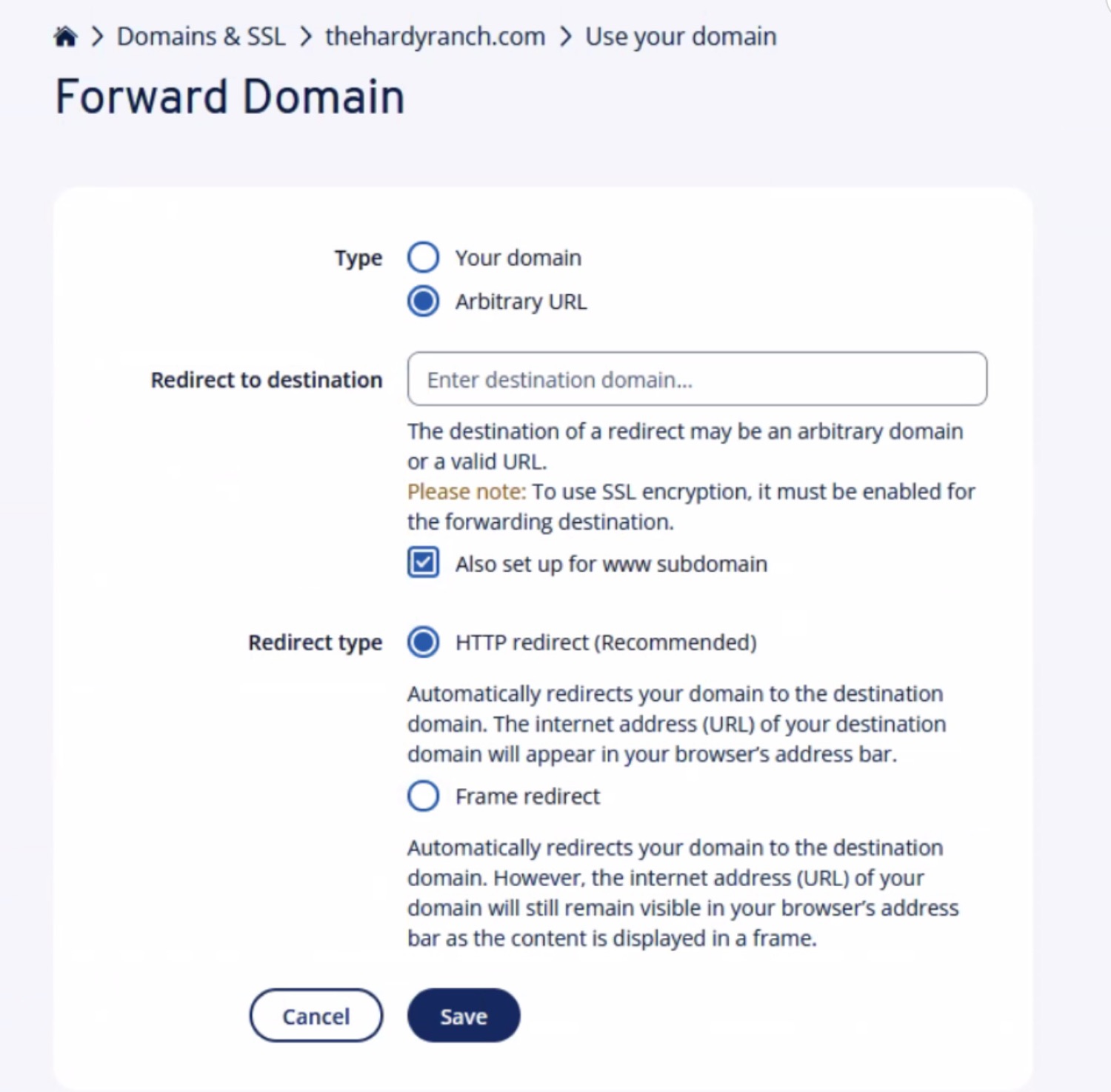
The "also set up for www subdomain" checkbox will undo everything. On the forwarding screen there's a checkbox that applies the redirect to www as well, and it arrives already checked. Leave it on and your registrar publishes its own records for www, which replace the CNAME you added. DNS doesn't allow both to exist at once, so the CNAME loses. Make sure it's unchecked before you save.
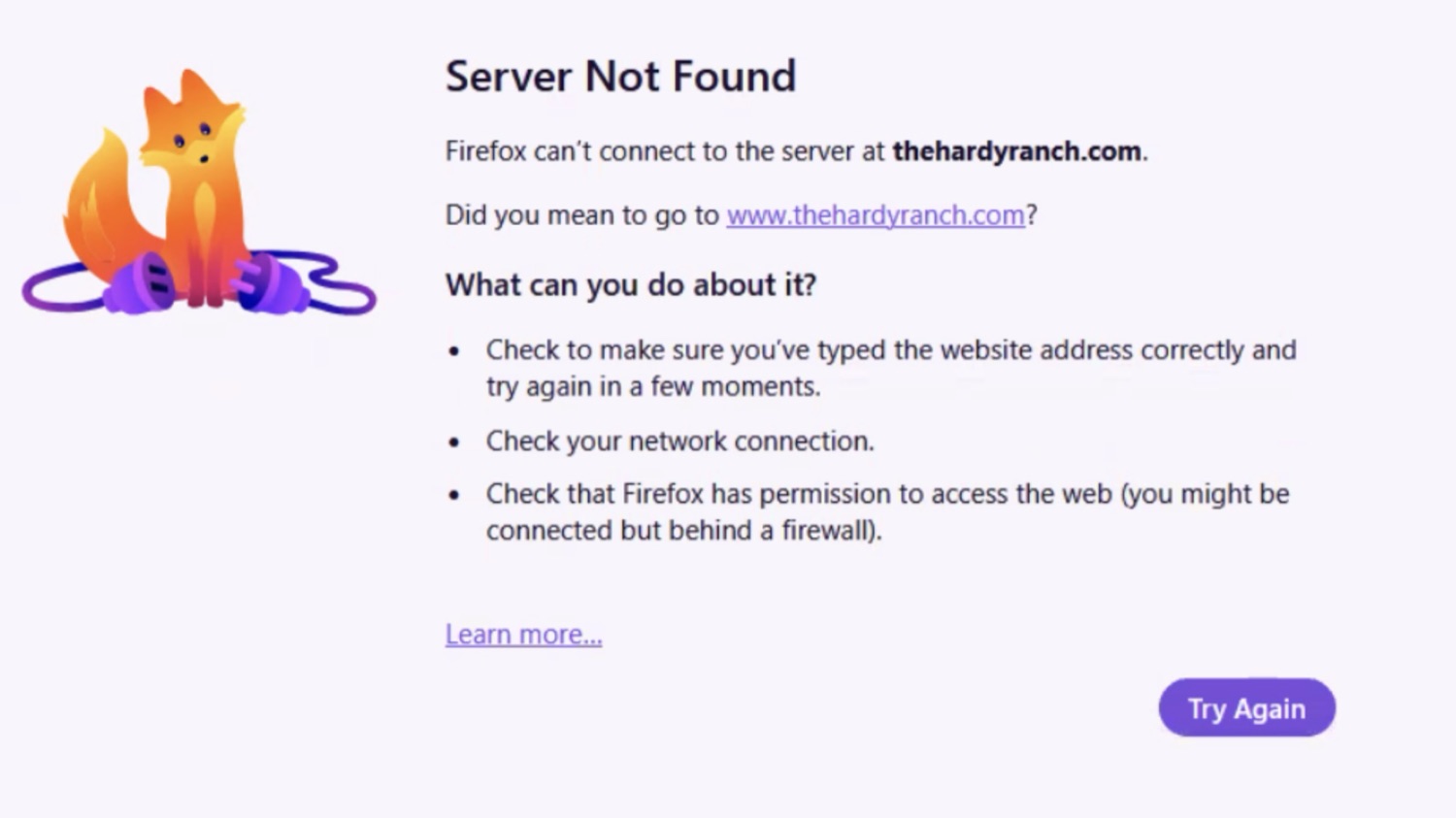
Your bare domain will look dead until the redirect is in place. Not a 404, but a "server not found" error, because there's nothing there yet to answer. That's expected at this stage, though it's unnerving if you've just finished the DNS work.
Your laptop remembers DNS answers for a while, including the answer "this domain doesn't exist." After you change a record it can keep handing you the old one for an hour, which makes a working setup look broken and sends you off fixing things that were never wrong. That happened to me twice in the same afternoon. Ask the authoritative nameserver directly instead:
Compare it against dig @8.8.8.8 www.yourdomain.com to see what everyone else is getting.
The Google settings page can disagree with itself. The Custom domains panel showed nothing connected, while trying to add the domain came back with "This domain is already in use by this site." Closing the dialog and reopening it showed the domain listed correctly. If you run into that, reload before you start deleting anything.
Starting over resets the clock. Because Google can take hours, a correct setup looks the same as a broken one for a while. The temptation is to tear it down and try again, which throws away whatever waiting you'd already done. If the CNAME checks out at the authoritative nameserver and Google shows the domain connected, leave it alone.
It'll work on your laptop and fail on your phone. This looks like a different problem entirely. If you skipped SSL on the bare-domain redirect, your laptop still works, because it quietly falls back to plain HTTP and follows the redirect. Phones increasingly won't do that. They force https:// first, reach a server with no certificate, and stop with "this site can't provide a secure connection." It isn't a DNS problem and it won't clear on its own. Turning on SSL for the forwarding fixes it.
Don't use a frame redirect. Registrars offer this next to the normal redirect, and it's tempting because it keeps your bare domain in the address bar instead of switching to www. It works by loading the real site inside a hidden frame. Every page ends up with the same URL, so nobody can bookmark or share a particular page, search engines handle it poorly, and a lot of sites refuse to load in a frame at all. Use the plain HTTP redirect.
The end result will be a site that shows up on your domain but can easily be edited in Google.