Few things in home tech are more universally frustrating than a printer that decides today is not the day. You need to print a shipping label, a boarding pass, a permission slip — and instead someone is yelling from the other room that the printer is broken again. The good news is that 90% of the time, it isn't broken. It's usually one of the same five things.
Here's the list, in the order I'd check them.
1. The printer went offline and isn't the default anymore
This is the most common one by a wide margin, and it costs nothing to fix. Both Windows and macOS have a habit of quietly flipping your printer to "offline" or swapping the default printer to something else — usually "Microsoft Print to PDF" or a printer you used one time at an old job three years ago.
On Windows, go to Settings, then Bluetooth & devices, then Printers & scanners. Find your printer, click it, and if it says offline, right-click and choose "Use printer online." While you're there, set it as the default. On a Mac, it's System Settings, then Printers & Scanners. Same idea — make sure the right printer is selected and it isn't paused.
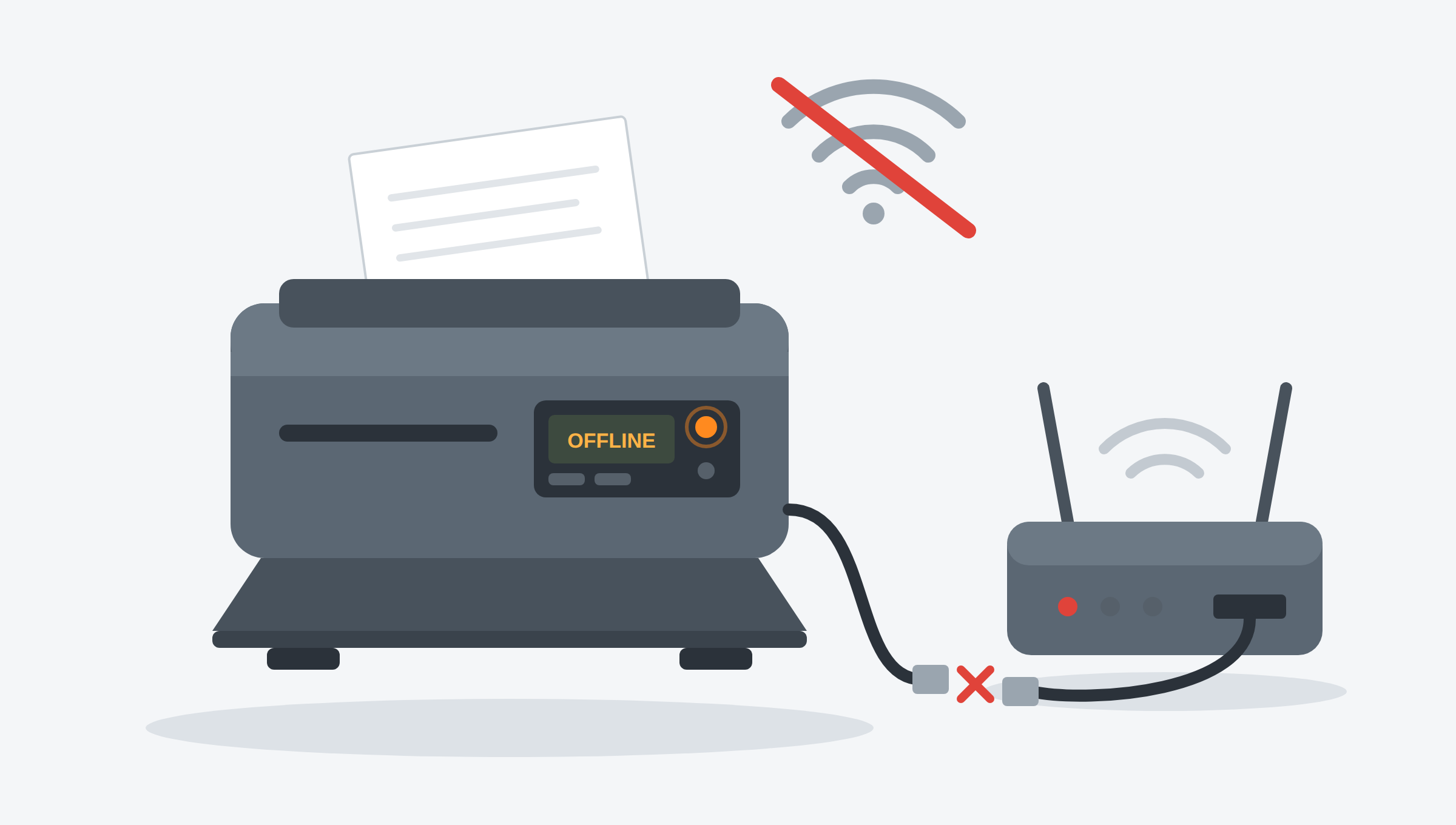
2. The wifi dropped
Wireless printers lose their wifi connection all the time. The router reboots overnight, the printer wakes up confused, and now your computer can't find it. Print the printer's network status page from its own little screen (every printer has a menu option for this buried somewhere) and confirm it has an IP address on your network.
If it doesn't, the fastest fix is usually to power-cycle both the printer and the router. Unplug the router for 30 seconds, plug it back in, wait for it to fully come up, then turn the printer off and back on. Nine times out of ten it reconnects on its own. If it doesn't, you'll need to re-add the printer through its setup app or the manufacturer's mobile app.
3. A stuck print job is blocking the queue
If you've hit print five times because nothing was happening, you now have five jobs stacked up in the queue, and the first one is stuck. Nothing prints until that first job clears or gets cancelled.
Open the print queue (on Windows, click the printer in Settings and choose "Open print queue"; on Mac, double-click the printer in Printers & Scanners) and cancel every job in there. All of them. Then try printing one fresh document. If the queue refuses to clear, restart the computer — that almost always shakes it loose.
4. A nearly-empty cartridge is refusing to print
Most consumer inkjets will refuse to print anything — including a black-and-white text document — if any one of the color cartridges is reading low. Not empty. Low. The printer decides on your behalf that you shouldn't be allowed to print until you spend $60 on ink.
Check the ink levels on the printer's screen or in its software. If one of them is low or empty, replacing it usually gets you printing again immediately. Some printers have a setting buried in the maintenance menu that lets you override this and print anyway, but not all of them, and manufacturers keep making it harder to find.
Replacement cartridges for most popular inkjet models are available on Amazon, often for less than the manufacturer's retail price.
5. A driver got quietly broken by an update
Windows Update and macOS upgrades both have a talent for breaking printer drivers without telling you. Everything worked yesterday, the computer updated overnight, and now the printer shows up but won't print — or won't show up at all.
Go to the printer manufacturer's website (HP, Brother, Epson, Canon), find your exact model, and download the latest driver for your operating system. Uninstall the old printer from your settings first, install the new driver, then re-add the printer. This takes 15 minutes and fixes a surprising number of "my printer just died" situations.
A note on consumer inkjets
If you ran through all five and your printer still won't cooperate, no big-box store will tell you this: consumer inkjets are designed to frustrate you into replacing them. The ink costs more per ounce than fine perfume, the cartridges are chipped to expire, and the firmware is written to nudge you toward giving up.
If you print fewer than about 10 pages a month, buy a cheap monochrome laser printer. A Brother laser will run you a bit over $100, the toner cartridge lasts for years of light home use, and it will still be working long after three inkjets in a row would have ended up at the recycling center. For most families who just need to print a shipping label now and then, that's actually the better long-term option.
Leave a comment